STAT 17: Statistical Methods for Business and Economics
08 Jun 2026
Sarah’s Next Challenge 📊
Last time, Sarah discovered that the median watch time is 12 hours, while the mean is 18 hours…
But her manager asks: “How consistent are our users?”
- Do most users watch similar amounts?
- Or is there huge variation?
- What does the “shape” of our data tell us?
The Problem: Measures of center don’t tell the whole story! 🤔
Today’s mission: Learn to measure and interpret data spread and distribution shape!
What We’ll Accomplish Today
By the end of this lecture, you will be able to:
- ✅ Calculate and interpret measures of spread (range, variance, standard deviation) using Google Sheets
- ✅ Understand the relationship between variance and standard deviation
- ✅ Identify and interpret skewness in distributions
- ✅ Recognize when data is symmetric, left-skewed, or right-skewed
Why Spread Matters 🎯
Two datasets with the same mean (15 hours):
Dataset A: 14, 14, 15, 15, 16, 16
Dataset B: 5, 8, 12, 18, 22, 25
Both have mean = 15 hours
But they look completely different!
Question: Which dataset represents more consistent user behavior?
Answer: Dataset A! The values are clustered tightly around the mean.
Visualizing Spread
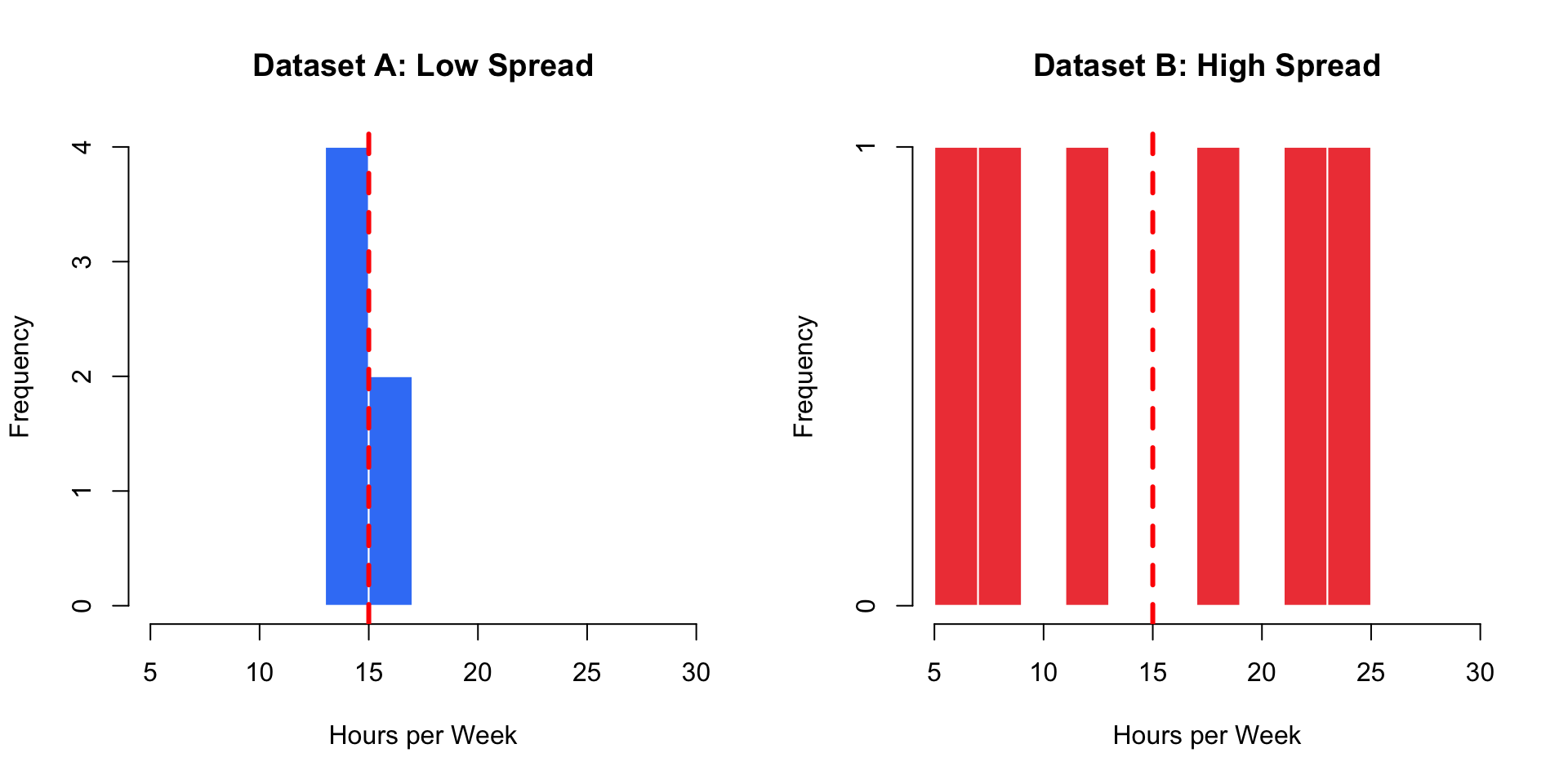
Red dashed line = Mean (15 hours for both)
Measures of Spread: Overview 📏
Three key measures:
- Range - Difference between maximum and minimum values (simplest)
- Variance - Average of squared deviations from the mean (foundation)
- Standard Deviation - Square root of variance (most interpretable)
Each measure tells us how spread out or dispersed the data is!
The Range
Definition: Range = Maximum - Minimum
Example: Sarah’s watch times (hours)
Data: 5, 8, 10, 12, 15, 18, 95
Range = 95 - 5 = 90 hours
Pros:
- ✅ Very easy to calculate
- ✅ Quick sense of data spread
Cons:
- ❌ Uses only two values (ignores the rest!)
- ❌ Extremely sensitive to outliers
Range in Google Sheets
Example data in cells A1:A7: 5, 8, 10, 12, 15, 18, 95
Formula: =MAX(A1:A7) - MIN(A1:A7)
Result: 90
Alternative (more explicit):
In cell B1: =MAX(A1:A7)
In cell B2: =MIN(A1:A7)
In cell B3: =B1 - B2
Limitation: Notice how one outlier (95) drastically affects the range!
Deviation from the Mean 📊
To measure spread better, we need to consider how far each value is from the mean.
Deviation = (Value - Mean) = \(x_i - \bar{x}\)
Example: If mean = 12 hours
- A user who watches 15 hours has deviation = 15 - 12 = +3
- A user who watches 8 hours has deviation = 8 - 12 = -4
Positive deviation = above average
Negative deviation = below average
Why Not Just Average the Deviations?
Let’s try: Data = 5, 8, 10, 12, 15, 18, 95
Mean = (5+8+10+12+15+18+95)/7 = 23.3 hours
Deviations:
- 5 - 23.3 = -18.3
- 8 - 23.3 = -15.3
- 10 - 23.3 = -13.3
- 12 - 23.3 = -11.3
- 15 - 23.3 = -8.3
- 18 - 23.3 = -5.3
- 95 - 23.3 = +71.7
Sum of deviations = -18.3 - 15.3 - 13.3 - 11.3 - 8.3 - 5.3 + 71.7 = 0 😱
The Problem: Deviations Cancel Out!
Mathematical fact: \(\sum_{i=1}^{n} (x_i - \bar{x}) = 0\) always!
Why? Positive and negative deviations always cancel each other out.
Solution: Square the deviations to make them all positive!
\((x_i - \bar{x})^2\) is always positive (or zero)
Variance: The Foundation
Definition: The average of the squared deviations from the mean
Sample Variance: \(s^2 = \frac{\sum_{i=1}^{n} (x_i - \bar{x})^2}{n-1}\)
Population Variance: \(\sigma^2 = \frac{\sum_{i=1}^{N} (x_i - \mu)^2}{N}\)
Key differences:
- Sample: Divide by (n-1) - called “degrees of freedom”
- Population: Divide by N
- We usually work with samples, so use n-1!
Why n-1 Instead of n? 🤔
Short answer: To get an unbiased estimate of population variance.
Intuition: When we calculate \(\bar{x}\) from the sample, we “use up” one degree of freedom. Only (n-1) values are truly “free” to vary.
For this class: Just remember to use n-1 for sample variance!
Good news: Google Sheets handles this automatically! 🎉
Calculating Variance: Step by Step
Example: Dataset A = 14, 14, 15, 15, 16, 16 (n = 6)
Step 1: Calculate mean
\(\bar{x} = \frac{14+14+15+15+16+16}{6} = 15\) hours
Step 2: Calculate each squared deviation
- \((14-15)^2 = 1\)
- \((14-15)^2 = 1\)
- \((15-15)^2 = 0\)
- \((15-15)^2 = 0\)
- \((16-15)^2 = 1\)
- \((16-15)^2 = 1\)
Calculating Variance: Step by Step (cont.)
Step 3: Sum the squared deviations
\(\sum (x_i - \bar{x})^2 = 1 + 1 + 0 + 0 + 1 + 1 = 4\)
Step 4: Divide by n-1
\(s^2 = \frac{4}{6-1} = \frac{4}{5} = 0.8\) hours²
Units: Variance is in squared units (hours²) - not very intuitive! 🤔
Variance in Google Sheets
Example data in A1:A6: 14, 14, 15, 15, 16, 16
Formula: =VAR.S(A1:A6)
Result: 0.8
Alternative functions:
=VAR.S(range)- Sample variance (use this for samples!)=VAR.P(range)- Population variance (rarely used)=VAR(range)- Older function (same as VAR.S)
Remember: The “S” stands for “Sample” (divides by n-1)!
Standard Deviation: Most Useful!
Definition: The square root of the variance
Sample Standard Deviation: \(s = \sqrt{s^2} = \sqrt{\frac{\sum_{i=1}^{n} (x_i - \bar{x})^2}{n-1}}\)
Population Standard Deviation: \(\sigma = \sqrt{\sigma^2}\)
Why take the square root?
To get back to the original units! 🎯
Standard Deviation Example
Dataset A: Variance = 0.8 hours²
Standard Deviation: \(s = \sqrt{0.8} \approx 0.89\) hours
Interpretation: On average, users’ watch times deviate from the mean by about 0.89 hours (or 53 minutes).
Much more interpretable than “0.8 hours²”! ✅
Standard Deviation in Google Sheets
Example data in A1:A6: 14, 14, 15, 15, 16, 16
Formula: =STDEV.S(A1:A6)
Result: ≈ 0.89
Alternative functions:
=STDEV.S(range)- Sample standard deviation (use this!)=STDEV.P(range)- Population standard deviation=STDEV(range)- Older function (same as STDEV.S)
Pro tip: You can also use =SQRT(VAR.S(A1:A6)) - gives the same result!
Comparing Datasets with Standard Deviation
Dataset A: 14, 14, 15, 15, 16, 16
- Mean = 15 hours
- SD ≈ 0.89 hours (low spread)
Dataset B: 5, 8, 12, 18, 22, 25
- Mean = 15 hours
- SD ≈ 7.58 hours (high spread)
Interpretation: Dataset B has users with much more variable viewing habits!
Calculating SD for Dataset B
Dataset B: 5, 8, 12, 18, 22, 25 (n = 6, mean = 15)
Squared deviations:
- \((5-15)^2 = 100\)
- \((8-15)^2 = 49\)
- \((12-15)^2 = 9\)
- \((18-15)^2 = 9\)
- \((22-15)^2 = 49\)
- \((25-15)^2 = 100\)
\(\sum (x_i - \bar{x})^2 = 316\)
\(s^2 = \frac{316}{5} = 63.2\) hours²
\(s = \sqrt{63.2} \approx 7.95\) hours ✅
📊 THINK-PAIR-SHARE #1 (5 minutes)
Practice with Spread Measures:
Dataset C: Weekly Netflix watch times (hours)
10, 11, 12, 13, 14
Tasks:
- Calculate the range
- Calculate the mean
- Calculate each deviation from the mean
- Calculate the variance (use n-1)
- Calculate the standard deviation
Discuss with a partner: How would you interpret the standard deviation? What does it tell Sarah about these users?
Share your answers in Poll Everywhere!
Share your answers in Poll Everywhere!
How would you interpret the standard deviation? What does it tell Sarah about these users?
🧘♀️ STRETCH BREAK
Time to move! (5 minutes)
- Stand up and stretch 🤸♀️
- Chat with neighbors 💬
- Grab some water 💧
When we return: Distribution shape
Understanding Distribution Shape 📊
Spread tells us how dispersed data is, but SHAPE tells us how it’s distributed!
Three main shapes:
- Symmetric - balanced on both sides
- Right-skewed (positively skewed) - tail extends right
- Left-skewed (negatively skewed) - tail extends left
Symmetric Distribution
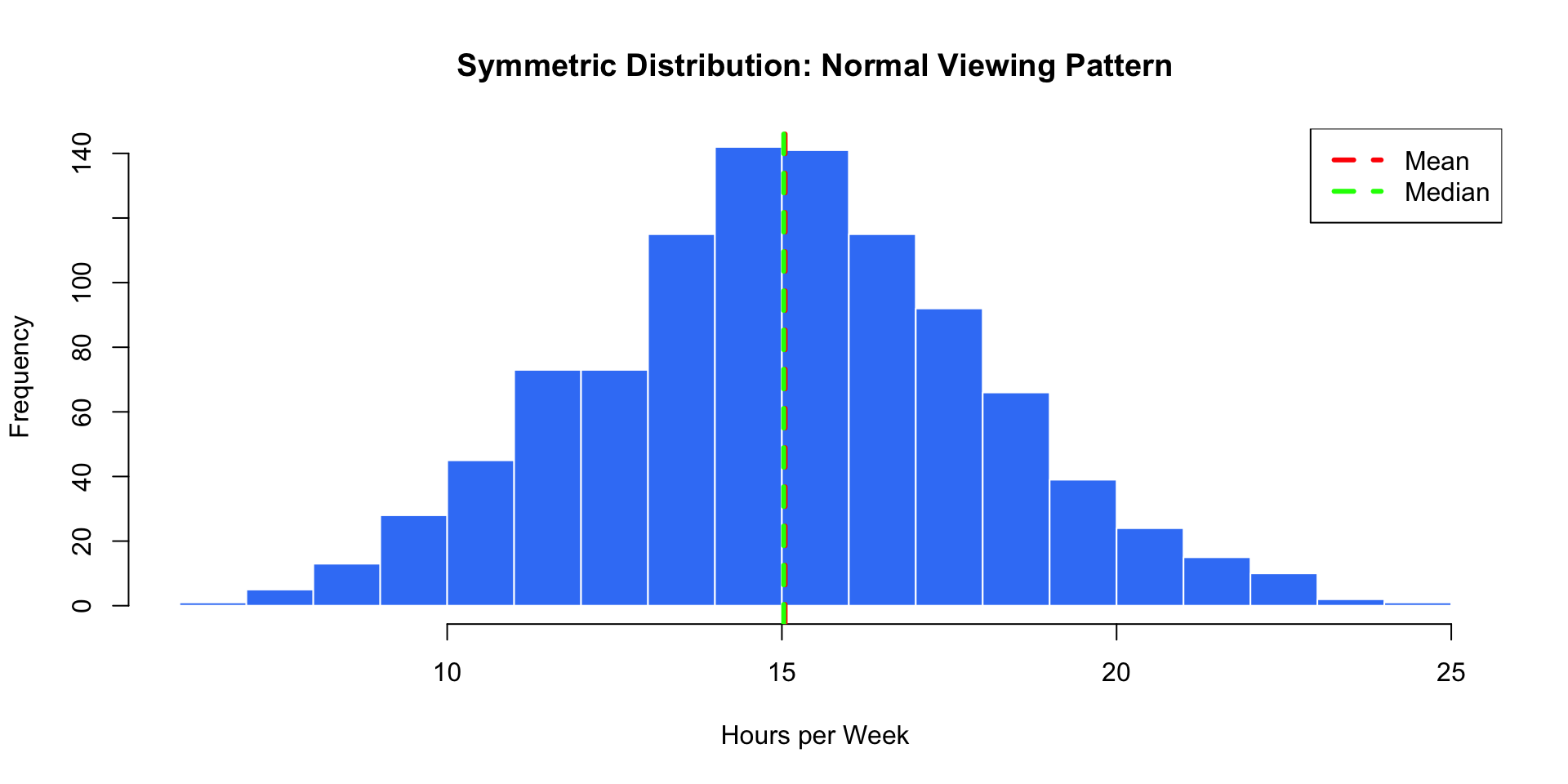
Key feature: Mean ≈ Median (they overlap!)
Right-Skewed Distribution (Positive Skew)
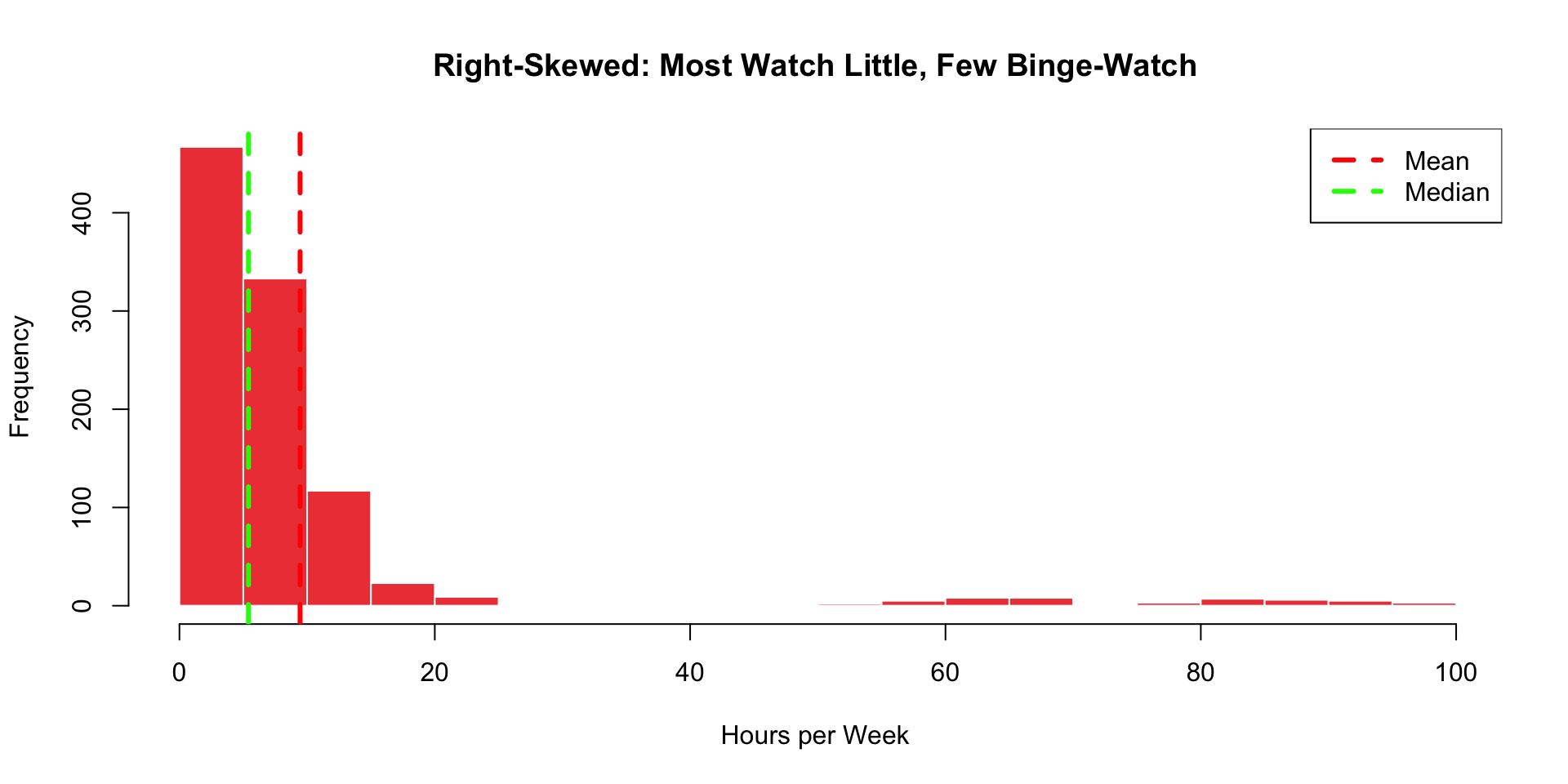
Key feature: Mean > Median (pulled by outliers on the right!)
Right-Skewed: Real Netflix Example
Sarah’s actual data (first 20 users, hours per week):
5, 6, 7, 8, 8, 9, 10, 10, 11, 12, 13, 14, 15, 18, 20, 22, 45, 67, 82, 95
Calculate in Google Sheets:
- Mean =
=AVERAGE(A1:A20)= 21.85 hours - Median =
=MEDIAN(A1:A20)= 11.5 hours
Mean > Median → Right-skewed!
The extreme binge-watchers (45, 67, 82, 95) pull the mean up!
Left-Skewed Distribution (Negative Skew)
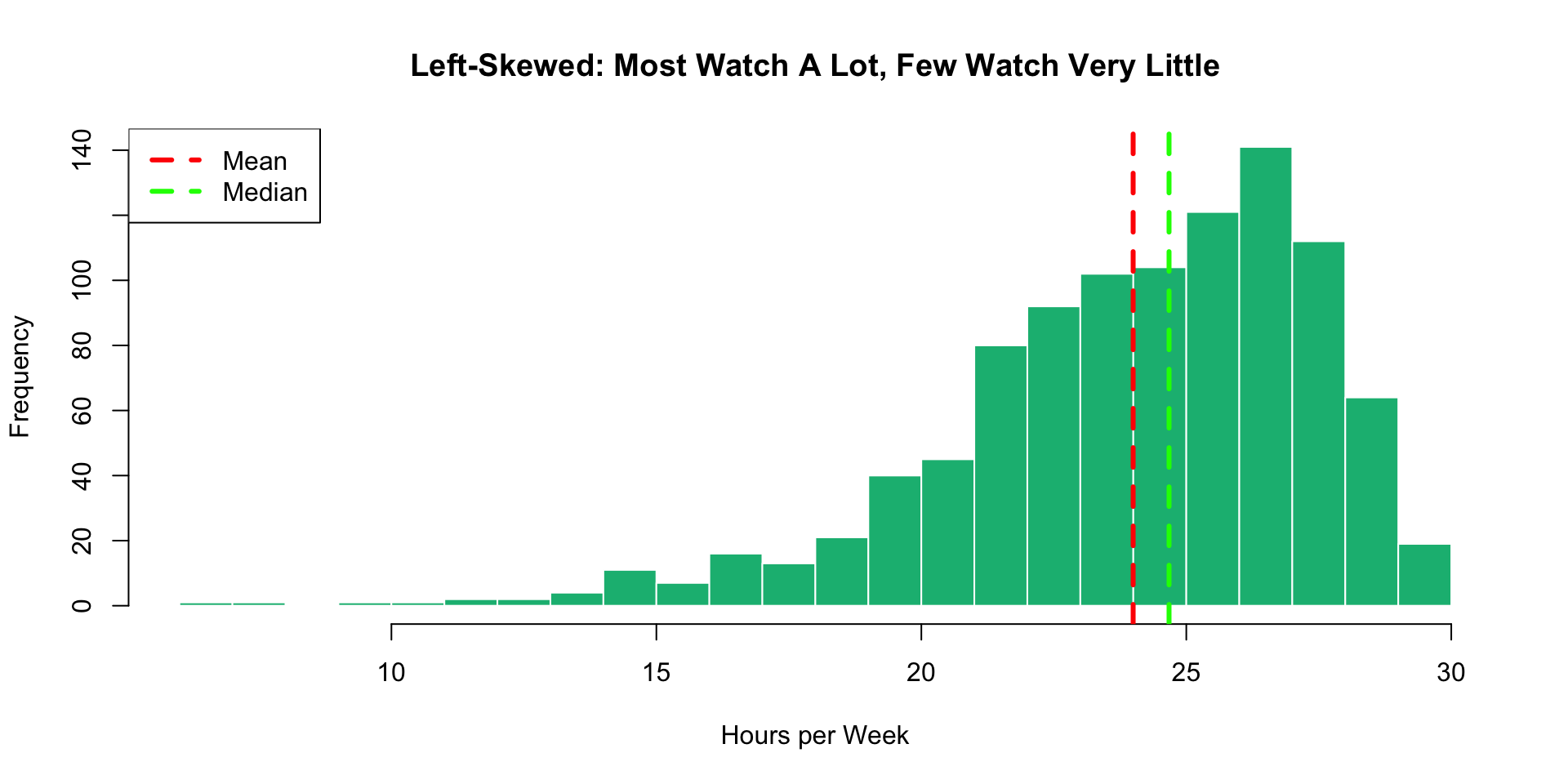
Key feature: Mean < Median (pulled by low outliers on the left!)
Identifying Skewness: The Rules 🎯
Three-step process:
- Calculate mean and median in Google Sheets
- Compare their values
- Determine skewness:
- If Mean ≈ Median → Symmetric
- If Mean > Median → Right-skewed (tail extends right)
- If Mean < Median → Left-skewed (tail extends left)
Pro tip: Look at a histogram too - visual confirmation helps! 📊
Why Skewness Matters 💡
For Sarah’s Netflix analysis:
Right-skewed watch times tell her:
- Most users are casual viewers (10-15 hours/week)
- A small group of super-users (50+ hours/week)
- Should report median (more representative)
- Target different strategies for casual vs. super-users
Business impact:
- ✅ Retention campaigns for super-users
- ✅ Engagement campaigns for casual users
- ✅ Realistic expectations for “typical” usage
Real-World Skewed Distributions
Right-skewed examples (Mean > Median):
- Income distributions (few billionaires pull mean up)
- House prices (luxury homes pull mean up)
- Website traffic (viral posts pull mean up)
- Netflix watch times (binge-watchers pull mean up)
Left-skewed examples (Mean < Median):
- Test scores with many high achievers
- Age at retirement (most retire around 65, few retire early)
- Product ratings on Amazon (most are 4-5 stars)
Visualizing Skewness in Google Sheets
Steps to check for skewness:
- Enter your data in column A
- Calculate measures:
- In B1:
=AVERAGE(A:A)(mean) - In B2:
=MEDIAN(A:A)(median) - In B3:
=STDEV.S(A:A)(standard deviation)
- In B1:
- Create histogram: Insert → Chart → Histogram
- Compare mean vs median
- Examine the histogram shape
📊 THINK-PAIR-SHARE #2 (7 minutes)
Skewness Detective Challenge:
Dataset D: User satisfaction ratings (1-5 scale)
5, 5, 5, 5, 4, 4, 4, 3, 3, 2, 1
Tasks:
- Calculate the mean and median
- Determine if the distribution is symmetric, right-skewed, or left-skewed
- Sketch what you think the histogram would look like
- Which measure of center should Sarah report to executives? Why?
Discuss: What does this distribution tell Sarah about user satisfaction?
Post your analysis on Ed Discussion with your group members’ names!
The Complete Picture: Spread + Shape
To fully describe a dataset, Sarah needs BOTH:
Measures of Center:
- Mean
- Median
- Mode
Where is the data centered?
Measures of Spread:
- Range
- Variance
- Standard deviation
How dispersed is the data?
Plus Shape:
- Symmetric, right-skewed, or left-skewed?
- Where are the outliers?
Sarah’s Complete Analysis 🎉
Weekly Watch Time Data (hours):
Measures of Center:
- Mean = 18 hours
- Median = 12 hours
- Mode = 10 hours
Measures of Spread:
- Range = 90 hours
- Standard deviation = 15.3 hours
Distribution Shape:
- Right-skewed (Mean > Median)
- Most users: 8-15 hours
- Extreme users: 50-95 hours
Sarah’s Recommendation to Executives 📋
“Based on my analysis…”
Center: “The median viewing time is 12 hours per week, which better represents our typical user than the mean (18 hours), since we have some extreme binge-watchers.”
Spread: “There’s substantial variation in viewing habits (SD = 15.3 hours), indicating diverse user segments.”
Shape: “Our distribution is right-skewed, with most users watching 8-15 hours, but a valuable segment watching 50+ hours weekly.”
Action: “We should create targeted strategies for both casual viewers and super-users!”
Google Sheets Function Summary 💻
Essential Functions for Spread & Shape:
| Function | Purpose | Example |
|---|---|---|
=MAX(range) |
Maximum value | =MAX(A1:A100) |
=MIN(range) |
Minimum value | =MIN(A1:A100) |
=VAR.S(range) |
Sample variance | =VAR.S(A1:A100) |
=STDEV.S(range) |
Sample std dev | =STDEV.S(A1:A100) |
=AVERAGE(range) |
Mean | =AVERAGE(A1:A100) |
=MEDIAN(range) |
Median | =MEDIAN(A1:A100) |
Remember: Use .S versions for samples (which is almost always!)
Your Expanded Statistical Toolkit 🧰
Measures of Spread:
- Range = Max - Min (simple but sensitive to outliers)
- Variance = Average of squared deviations (in squared units)
- Standard Deviation = √Variance (most interpretable!)
Distribution Shape:
- Symmetric: Mean ≈ Median
- Right-skewed: Mean > Median (tail extends right)
- Left-skewed: Mean < Median (tail extends left)
Google Sheets Mastery:
- Use
STDEV.S()andVAR.S()for samples - Compare mean vs median to detect skewness
- Create histograms to visualize shape
Common Mistakes to Avoid ⚠️
- Using VAR.P or STDEV.P for sample data (almost always use
.Sversions!) - Ignoring outliers when interpreting mean and standard deviation
- Forgetting units - variance is in squared units, SD is in original units
- Confusing skew direction - “right-skewed” means tail extends RIGHT (mean pulled right)
- Relying only on center - always report spread and shape too!
Quick Practice: What’s the Skewness? 🤔
Without calculating, predict the skewness:
Scenario 1: Ages of US residents
Most people in middle age ranges, fewer children and elderly
Answer: Approximately symmetric (slight variations)
Scenario 2: Incomes in the United States
Most people earn moderate incomes, few earn millions
Answer: Right-skewed! (Mean > Median)
Scenario 3: Scores on an easy exam
Most students score 80-100, few score below 70
Answer: Left-skewed! (Mean < Median)
Looking Ahead
Next Class: Introduction to Probability
- Understanding randomness
- Basic probability rules
- Applying probability to real data
This week’s WS and HW: Will include analyzing a dataset using everything we’ve learned - center, spread, and shape! 📊
Questions? Office hours are the perfect place to practice these calculations! 🤗
Quick Knowledge Check ✅
Rate your confidence (1-5) on Ed Discussion:
- Calculating range, variance, and standard deviation in Google Sheets ⭐⭐⭐⭐⭐
- Understanding why we use n-1 for sample variance ⭐⭐⭐⭐⭐
- Interpreting standard deviation in context ⭐⭐⭐⭐⭐
- Identifying skewness by comparing mean and median ⭐⭐⭐⭐⭐
- Recognizing skewed distributions in histograms ⭐⭐⭐⭐⭐
If you rated anything 3 or below, please visit office hours! 🤝
Thank you! 📊✨
Questions? Office hours information on Canvas.
Next up: Introduction to Probability & Statistical Thinking!

STAT 17 – Spring 2026